
EayTools Word Converter is a professional Windows desktop application that empowers users to convert Word documents (.doc and .docx) to a wide variety of popular formats. Built with a modern, intuitive interface, it streamlines document conversion workflows for both individual files and batch operations—and it’s completely free.
- Input Formats:
- Word Documents (.doc) – Word 97-2003 format
- Word Documents (.docx) – Word 2007+ format
- Output Formats (13 formats):
- Documents: PDF, HTML, TXT, RTF, XPS, MHT, EPUB
- Images: JPG, PNG, BMP, GIF, TIFF, EMF
100% Safe & Secure
100% Free
Why Convert Word Documents?
Editing
Word files (.doc / .docx) rely on Microsoft Word’s proprietary layout rules, and many devices or lightweight apps lack full editing compatibility. When you need to modify Word content without installing Microsoft Word, converting documents to flexible editable formats like TXT, RTF, or HTML unlocks full freedom to rewrite text, tweak layouts, and adjust styling without software limitations.
Reusability
Word documents hold complete text, embedded photos, charts, and graphic assets. If you want to repurpose this content for websites, e-books, or graphic design work, a Word Converter extracts all internal elements effortlessly. For example, exporting Word pages as standalone JPG/PNG images lets designers reuse document visuals for blogs, social media, and print materials.
Accessibility
Many lightweight readers, e-readers, and basic office tools cannot properly render complex Word formatting. Converting Word files to universal formats eliminates compatibility barriers. Saving your document as EPUB, for instance, lets you view full content on any e-reader, tablet, or mobile reading app without layout distortion.
Integration
Smooth workflow integration often requires Word content to work with third-party tools. A Word Converter bridges this gap perfectly: exporting Word files to PDF, XPS or MHT creates documents natively supported by email clients, cloud storage, and enterprise office suites, enabling seamless data transfer across all your productivity software.
Sharing
For personal and business sharing, Word files can create compatibility headaches—recipients without Word will see broken formatting. A Word Converter delivers 15 different output formats, so you can pick a lightweight, universally compatible file type (PDF, TXT, PNG, HTML) to send clean, properly formatted documents to anyone without extra setup.
Printing
Complex Word files with custom fonts, multi-column layouts, or embedded graphics often suffer misalignment, cut-off text, or blurry elements when sent directly to printers. Converting Word documents to print-optimized formats like high-DPI TIFF or standardized PDF locks in all formatting, guaranteeing crisp, consistent printed results on every printer model.
Essential Features of the Word Converter Tool
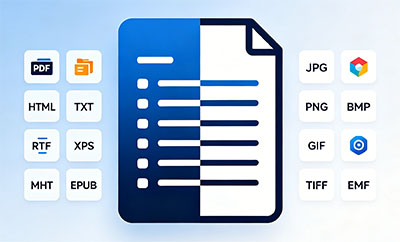
Broad Cross-Version Word Input & 15 Multi-Purpose Output Formats
EayTools Word Converter delivers full compatibility with all mainstream Word source files, accepting both legacy .doc (Word 97–2003) and modern .docx (Word 2007 and newer) documents without layout corruption or missing content.
It offers a total of 15 distinct export formats split into two practical categories to fit all office, publishing and design needs:
- Document formats: PDF, HTML, TXT, RTF, XPS, MHT, EPUB
- Image formats: JPG, PNG, BMP, GIF, TIFF, EMF All format conversion functions are unlocked for permanent free use with no paywall restrictions.
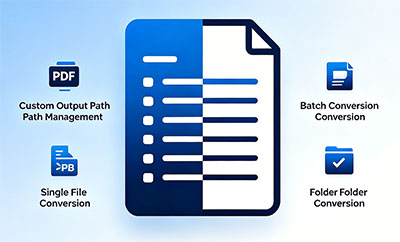
Flexible Conversion Modes for All Work Scenarios
This tool equips users with four practical conversion options to handle single tasks and bulk workloads efficiently:
Custom Output Path Management: Freely store converted files in any custom folder on your Windows PC, or retain files in the original source directory for easy file management.
Single File Conversion: One-click fast processing for individual Word documents for quick small-scale exports.
Batch Conversion: Import dozens of Word files at once and process them simultaneously to cut repetitive manual work.
Folder Conversion: Automatically scan and convert every .doc and .docx file stored in a chosen local folder.
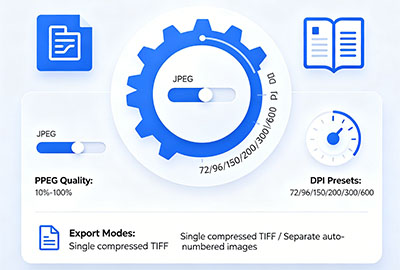
Customizable Advanced Image Conversion Controls
For users exporting Word documents to image formats, professional fine-tuning tools are fully available at zero cost:
- Adjustable JPEG quality slider: Tweak quality from 10% to 100% to strike a perfect balance between smaller file size and sharp visual clarity.
- Multiple DPI resolution presets: Choose from 72, 96, 150, 200, 300, and 600 DPI to match screen display, standard printing, or high-definition commercial print requirements.
- Dual multi-page export modes: You can save all pages of a long Word file as one single compressed TIFF (with LZW compression to shrink file size), or split each page into separate auto-numbered image files for simple sorting and editing.
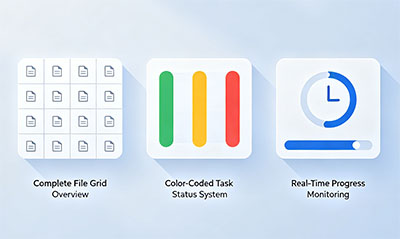
Clean, Visualized User Interface with Clear Status Tracking
The modern, intuitive Windows-native interface eliminates complicated learning curves for both beginners and frequent office users:
- Complete File Grid Overview
- Color-Coded Task Status System
- Real-Time Progress Monitoring
Why Choose EayTools Word Converter?

100% Free
Enjoy all the powerful features without any hidden costs, watermarks, or usage limits.

High-Speed Performance
Convert single or multiple files quickly without system slowdowns.

Preserve Formatting
The converter is designed to maintain the original layout, fonts, and images of your Word documents.

Privacy Guaranteed
As a desktop application, all processing is done locally on your computer, ensuring your documents remain private and secure.
Getting Started: A Step-by-Step Tutorial
Follow this simple guide to start converting your Word documents for free.
Step 1: Launch the Application
Download and install EayTools Word Converter from the official website. Launch the application, and you will be greeted by the clean, modern file grid interface.
Step 2: Add Your Word Documents
Click the “Add Files” or “Add Folder” button to import your .doc or .docx files. The files will appear in the main grid, displaying their name, path, size, and page count.
Step 3: Select Your Output Format
From the dropdown menu, choose your desired output format. You can select from documents like PDF or EPUB, or image formats like JPG or PNG.
Step 4: (Optional) Configure Advanced Settings
Click the “Settings” or “Options” button to fine-tune your conversion:
- For Images: Set the DPI resolution and JPEG quality.
- For TIFF: Choose between a single multi-page file or individual page images.
Step 5: Choose Output Destination
Specify where you want to save the converted files. You can choose the source folder (to keep them alongside the originals) or a custom location.
Step 6: Start the Conversion
Click the “Convert” button. The software will begin processing your files. The real-time progress dialog will show the status of each file, and the color-coded status will let you know when the conversion is complete.
Frequently Asked Questions (FAQ)
A: Yes, it is entirely free to use for all features, with no limitations on file size or the number of conversions.
A: Absolutely. You can convert between all supported formats, including from older .doc to newer .docx.
A: The status for that file will turn red, and a detailed error message will be shown in the progress dialog, helping you troubleshoot the issue.
EayTools Word Converter Wizard System Requirements
Software Download
File Size: 113 MB
Version: 1.0.0
System Specifications
Hard Disk Space
100 MB of free hard disk space
RAM
Minimum 4 GB RAM
Processor
Intel® Pentium 1 GHz processor (2.4 GHz is recommended)
Supported Editions
Microsoft Windows – Windows OS 11 (64 bit), 10, 8, 7 (32 bit or 64 bit) & Windows Server 2025, 2022, 2019, 2016, 2012 R2, and 2008.
Electronic Delivery
Within about 15 minutes after your payment goes through, we’ll send you an email with your license keys and the latest download link.