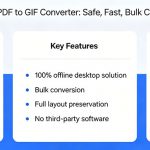

Blog Summary: Manual PDF to DOCX conversion is slow, risky, and often loses formatting. This guide introduces EayTools PDF to DOCX Converter — a 100% offline desktop tool that converts single or multiple PDFs to fully editable DOCX files quickly, safely, and without third‑party software.
Why Convert PDF to DOCX?
- DOCX is fully editable; PDF is meant mainly for viewing.
- Word offers rich formatting tools for fonts, styles, and layouts.
- Easy to copy, paste, and rearrange content without errors.
- Ideal for team collaboration and real‑time editing.
- Flexible document structure for ongoing updates.
Prerequisites
- Your PDF files saved locally.
- A reliable offline converter for privacy and accuracy.
- A Windows PC with enough storage space.
- Basic file handling knowledge.
Manual Methods to Convert PDF to DOCX
1. Using Microsoft Word
- Open Microsoft Word.
- Go to File → Open → Browse and select your PDF.
- Click OK when Word prompts to convert the PDF.
- Edit and save as DOCX.
2. Copy‑and‑Paste Method
- Open your PDF in a viewer.
- Select and copy content.
- Paste into a blank Word document.
- Manually fix formatting, images, and tables.
3. Using Google Docs
- Upload PDF to Google Drive.
- Right‑click → Open with → Google Docs.
- Go to File → Download → Microsoft Word (.docx).
Limitations of Manual Methods
- Extremely time‑consuming for long or complex PDFs.
- Often breaks original layout, fonts, and images.
- Tables and graphics may not transfer correctly.
- Loses hyperlinks, annotations, and design elements.
- Not suitable for bulk conversion.
Professional Offline Solution: EayTools PDF to DOCX Converter
For safe, accurate, bulk PDF‑to‑DOCX conversion, choose EayTools — the fully offline, standalone converter that protects your data and preserves perfect formatting.
Key Advantages
- True offline conversion: Internet only for download and license activation.
- Batch processing: Convert hundreds of PDFs at once.
- Standalone: No Adobe Acrobat or extra software needed.
- Full formatting preservation: Text, fonts, images, tables, hyperlinks stay intact.
- Dual file selection: Add individual files or entire folders.
- Selective conversion: Check/uncheck files you want to convert.
- Custom save location: Organize output easily.
- Wide Windows compatibility: Windows 11, 10, 8, 7, Server.
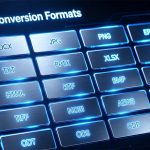
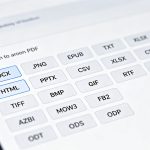
- Multi‑format export: DOCX, GIF, HTML, TXT, PNG, JPG, TIFF, and more.
- Free trial: Convert up to 5 files for free.
- 24/7 customer support.
Step-by-Step Offline Conversion
- Download and install EayTools PDF to DOCX Converter.
- Launch the tool and select Select Files or Select Folder.
- Choose your PDF folder and click Next.
- Select DOCX as the output format.
- Select a destination folder to save converted files.
- Click Convert — the tool runs fully offline.
After Conversion: Best Practices
- Open the DOCX file to confirm it works correctly.
- Check text, images, tables, fonts, and layout.
- Verify full editability in Microsoft Word.
- Keep a backup of the original PDF.
FAQs
Q1: Can I convert PDF to DOCX offline?
Yes — EayTools PDF to DOCX Converter works completely offline after installation.
Q2: Does this tool keep original formatting?
Yes — it preserves all text, images, tables, hyperlinks, and layout.
Q3: Is batch conversion supported?
Yes — you can convert hundreds of PDFs in one offline process.
Q4: Do I need Adobe Acrobat?
No — EayTools is a standalone application.
Q5: Is there a free trial?
Yes — you can convert up to 5 PDF files for free.
Conclusion
Manual PDF to DOCX methods waste time and risk formatting loss. EayTools PDF to DOCX Converter provides a secure, offline, professional solution for individuals, businesses, and experts. Enjoy fast, accurate, bulk conversion with full privacy and zero third‑party dependencies.