
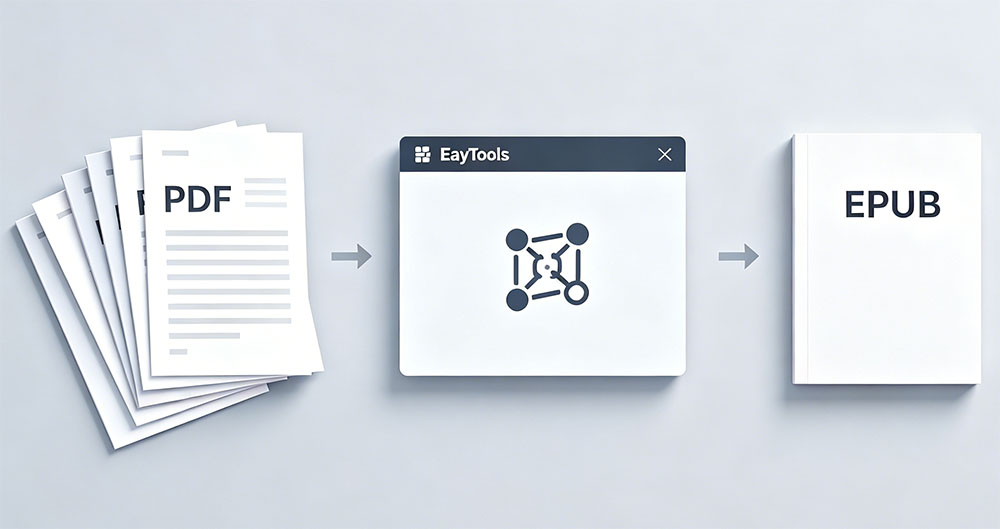
Blog Summary: Manual PDF to EPUB conversion often breaks formatting, takes excessive time, and risks data privacy. This guide introduces EayTools PDF to EPUB Converter — a 100% offline desktop tool that converts single or multiple PDFs to clean, readable EPUB eBooks while preserving layout, fonts, images, and hyperlinks with zero third‑party software required.
Why Convert PDF to EPUB?
PDFs are great for sharing fixed-layout documents but are not optimized for e-readers or mobile reading. EPUB solves this with these key benefits:
- Reflowable text: Automatically fits any screen size on phones, tablets, and e-readers.
- Adjustable fonts: Resize text easily for comfortable reading.
- E-reader optimized: Perfect for Kindle, Kobo, Apple Books, and other devices.
- Night mode support: Reduces eye strain during nighttime reading.
- Interactive navigation: Clickable table of contents, chapters, and bookmarks.
- Smaller file size: Faster downloads and less storage usage.
- Faster loading: Optimized for smooth digital reading experiences.
Pre-requisites Before Conversion
- Ensure your PDF files open correctly and are well-formatted.
- Back up original PDF files in a secure location.
- Organize PDFs in one easy-to-access folder.
- Confirm sufficient storage space on your Windows device.
- Use a trusted offline converter for privacy and accuracy.
Manual Methods to Convert PDF to EPUB
1. Google Docs Method
- Open Google Drive and upload your PDF.
- Right-click the PDF → Open with → Google Docs.
- Go to File → Download → EPUB Publication (.epub).
2. Microsoft Word Method
- Open PDF in Microsoft Word.
- Allow Word to convert the PDF to an editable document.
- Review and fix formatting errors.
- Save as a Word file, then use an online tool to convert to EPUB.
3. Copy-Paste Method
- Open PDF and copy desired content.
- Paste into Microsoft Word.
- Manually adjust headings, paragraphs, images, and spacing.
- Save as Web Page (.html), then rename the file extension to .epub.
Drawbacks of Manual Conversion
- Extremely time-consuming for multiple or complex files.
- No batch processing — must convert one file at a time.
- Often breaks original layout, fonts, images, and tables.
- Risks missing text, broken links, and misplaced elements.
- Requires manual editing to fix formatting issues.
- Not suitable for non-technical users or large documents.
- Simple renaming does not create a valid EPUB file.
Professional Offline Solution: EayTools PDF to EPUB Converter
For secure, high-quality, bulk PDF-to-EPUB conversion, choose EayTools — the fully offline, standalone converter that protects your data and preserves perfect formatting throughout the process.
Key Advantages
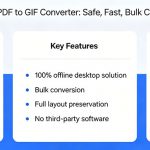
- True offline conversion: Internet only for download and license activation.
- Batch processing: Convert hundreds of PDFs at once.
- Standalone: No Adobe Acrobat or extra software needed.
- Full formatting preservation: Text, fonts, images, tables, hyperlinks stay intact.
- Dual file selection: Add individual files or entire folders.
- Selective conversion: Check/uncheck files you want to convert.
- Custom save location: Organize output files easily.
- Wide Windows compatibility: Windows 11, 10, 8, 7, Server editions.
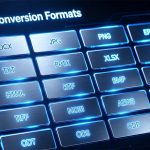
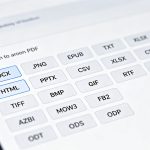
- Multi-format export: EPUB, HTML, TXT, RTF, DOCX, PDF, EML, MSG, image formats, and more.
- User-friendly interface: Simple steps for beginners and experts alike.
Step-by-Step Offline Conversion
- Download and install EayTools PDF to EPUB Converter.
- Launch the tool; use Select Files or Select Folder to add PDFs.
- Check or uncheck items to choose exactly what to convert.
- Select EPUB as the output format.
- Choose a destination folder to save converted eBooks.
- Click Convert — the tool runs fully offline to complete the job.
After Conversion: Best Practices
- Verify text, headings, paragraphs, images, and spacing appear correctly.
- Test the EPUB file on your e-reader or reading app.
- Confirm bookmarks, table of contents, and hyperlinks work properly.
- Check images for clarity and correct positioning.
- Keep a backup of original PDF files for future edits.
FAQs
Q1: How do I convert PDF to EPUB without formatting loss?
Use EayTools PDF to EPUB Converter for offline, high-fidelity conversion that preserves all original layout and elements.
Q2: Can I convert multiple PDFs at once offline?
Yes — EayTools supports batch conversion and runs completely offline after installation.
Q3: Do I need Adobe Acrobat for this conversion?
No — EayTools is a standalone application with no third-party dependencies.
Q4: Is EPUB better than PDF for e-readers?
Yes — EPUB offers reflowable text, adjustable fonts, and better compatibility with e-reader features.
Q5: How do I ensure my EPUB is readable on all devices?
Use EayTools to maintain proper formatting and test on your target device after conversion.
Conclusion
Manual PDF to EPUB methods are slow, error-prone, and risky for data privacy. EayTools PDF to EPUB Converter provides a secure, offline, professional solution for authors, students, businesses, and casual readers. Enjoy fast, accurate, bulk conversion with full layout preservation and complete data control.