
1. Product Overview
1.1 What Is EayTools Word Converter?
EayTools Word Converter is a lightweight, high-performance native Windows desktop utility exclusively built for converting Word documents. It fully supports legacy .doc (Word 97–2003) and modern .docx (Word 2007 and later) source files, with industry-leading layout retention technology to eliminate format distortion, missing text, broken tables, displaced embedded images, header/footer loss or hyperlink failure after conversion.
Designed with a clean, minimalist Windows-native graphical interface, it drastically simplifies single-file quick exports, bulk batch processing and full-folder automatic scanning workflows. Unlike most competing conversion software that locks advanced functions behind paywalls, embeds watermarks, enforces conversion quotas or requires mandatory account registration, EayTools Word Converter unlocks every single professional feature permanently for free, with zero hidden fees, usage caps or functional limitations.
1.2 Target User Scenarios
This tool fits all groups with regular Word conversion demands:
- Office staff: Convert contracts, reports and meeting minutes to PDF, image or EPUB for sharing & printing
- Students & educators: Transform thesis, homework and lecture slides into e-books or high-DPI printable images
- Graphic & publishing designers: Export Word layouts to lossless vector/raster images for layout design
- Small business teams: Mass-process dozens of Word archives without expensive paid software subscriptions
- Global multilingual users: Native multi-language UI for non-English Windows environments
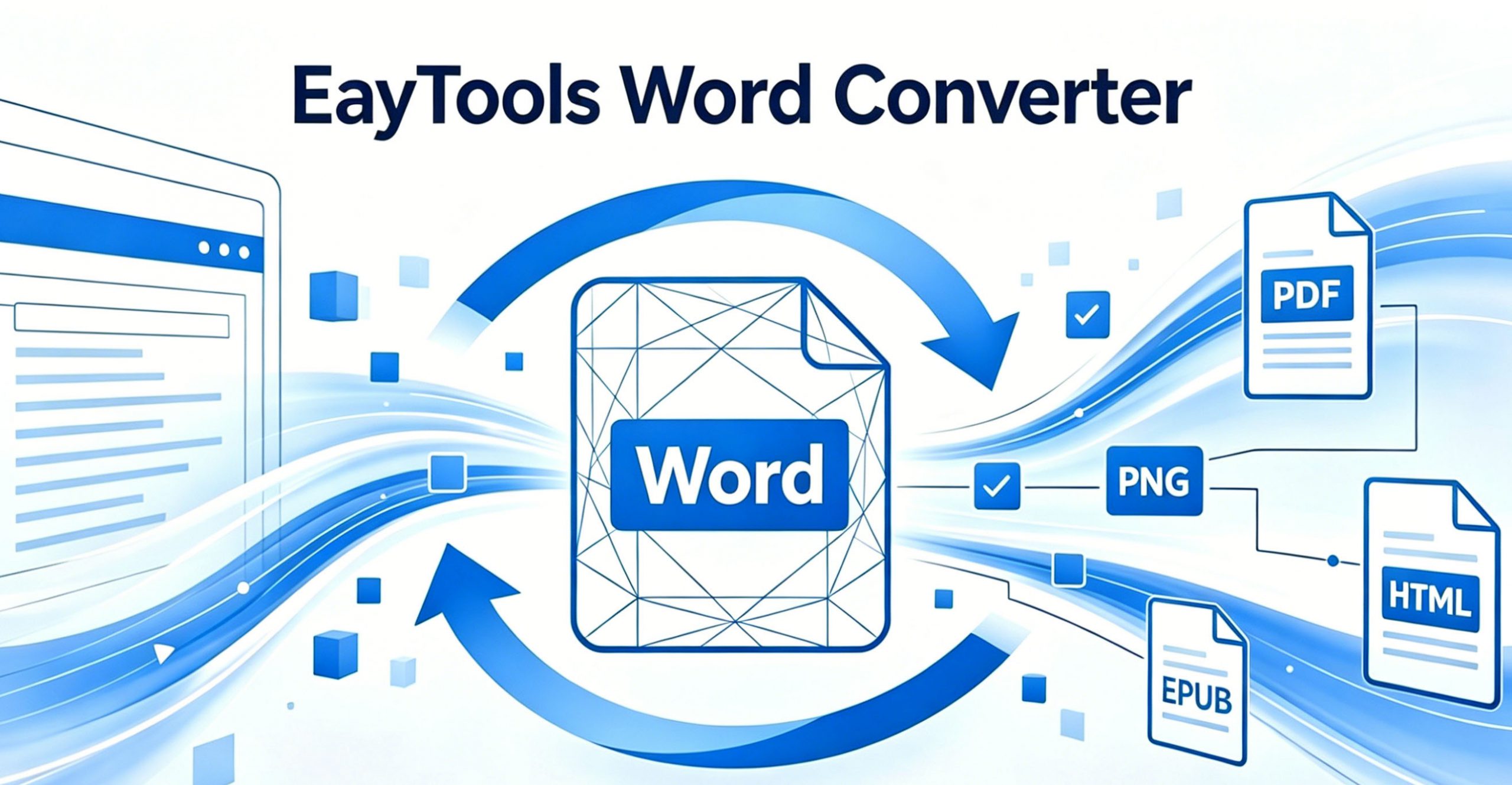
Matching Illustration 1: Main Product Hero Banner Icon
Style: Consistent soft gradient light blue background, flat modern minimalist icon design (matches your reference graphic)
Layout: Central dual-tone Word document core icon; left side grid of document format badges (PDF, HTML, TXT, RTF, XPS, MHT, EPUB,); right side grid of image format badges (JPG, PNG, BMP, GIF, TIFF, EMF); bottom bold text title EayTools Word Converter
Usage: Homepage hero banner, software store cover image, official document header visual
2. Core Unique Advantage: Fully Free Without Any Restrictions
Why Choose EayTools Word Converter Over Paid & Freemium Competitors?
Most Word conversion tools impose strict limits to push users into premium upgrades: daily conversion caps, mandatory output watermarks, locked high-resolution export, limited batch file quantities and forced account subscriptions. EayTools Word Converter eliminates all these barriers completely, delivering enterprise-grade conversion power at zero cost:
✅ Unlimited conversion volume: No daily/monthly file count caps, process thousands of Word documents back-to-back without throttling
✅ Zero watermarking: All exported PDF, image and e-book files are clean, unbranded, suitable for commercial printing & formal document distribution
✅ Full access to all 15 output formats: No format tier lock—document, vector and raster image formats are all unlocked for free
✅ No registration or login barriers: Skip account creation, email verification and subscription payments; download and launch instantly
✅ Advanced image tuning tools free forever: JPEG quality sliders, 6-level DPI presets and multi-page TIFF splitting require no premium unlock
✅ Local offline processing: All conversion runs locally on your Windows PC, no file upload to third-party servers, fully protect confidential Word files like contracts, resumes and internal reports
✅ Ad-free experience: No pop-up ads, forced page redirects or third-party software bundled during installation
Matching Illustration 2: “100% Free No Limits” Feature Badge Icon
Layout: Central “Free” shield badge; surrounding small icons representing unlimited files, no watermark, offline local processing, no subscription; bottom subtitle: All Professional Tools Unlocked Permanently Free
Style: Same soft blue flat design as main hero icon
3. Full Breakdown of Key Functional Features
3.1 Complete Input & 14-Classified Output Format Compatibility
Supported Source Input Word Formats
.doc: Classic binary Word format (Word 97–2003).docx: Modern XML-based open Word format (Word 2007, 2010, 2013, 2016, 2019, 365) Layout retention engine preserves complex Word elements: custom fonts, multi-row tables, inline charts, anchored pictures, page margins, footnotes, cross-references and section breaks.
15 Free Export Output Formats (2 Functional Categories)
- Document & E-book Formats (8 Types – For Editing, Archiving & Digital Reading) PDF, HTML, Plain TXT, RTF, XPS, MHT, EPUB
- Graphic Image Formats (6 Types – For Printing, Design & Web Display) JPG, PNG, BMP, GIF, TIFF, EMF
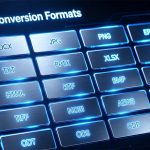
Matching Illustration 3: Format Support Grid Icon
Layout: Central Word file icon split into .doc / .docx labels; left vertical list of document format icons; right vertical list of image format icons; text label: 15 Fully Free Export Formats
3.2 4 Flexible Conversion Modes For All Workloads
Tailored to handle one-off small tasks and mass archive processing efficiently:
- Single File One-Click Conversion Drag-and-drop a single Word document or click “Add File” for instant standalone conversion, perfect for quick individual exports like a single resume or report.
- Batch Multi-File Queue Conversion Import dozens of Word files simultaneously into the task list, process all documents in parallel to cut repetitive manual import operations and drastically boost office productivity.
- Whole Folder Auto-Scan Conversion Select any local Windows folder; the tool automatically traverses subfolders, identifies all
.docand.docxfiles, and bulk adds them to the conversion queue in one click. - Custom Output Directory Management Two flexible file storage rules to organize converted files:
- Custom target folder: Route all finished files to a unified user-specified local directory
- Source folder mirror: Save converted files alongside original Word documents for centralized sorting
Matching Illustration 4: 4 Conversion Modes Functional Icon
Layout: Center Word document icon; four surrounding mini icons: single file, multi-file list, folder directory, custom save path; bottom text: Flexible Single/Batch/Folder Conversion Modes
3.3 Professional Advanced Image Export Tuning Tools
All graphic parameter adjustment panels are fully free for users exporting Word pages to image formats, covering web display, home printing and high-end commercial offset printing demands:
- Adjustable JPEG Quality Slider Precise continuous tuning range from 10% (minimal file size, basic compression) to 100% (lossless full visual sharpness), allowing users to balance storage footprint and image clarity freely.
- Multi-Standard DPI Resolution Presets 6 universal built-in DPI options covering all common usage scenarios: 72 DPI (web & screen display), 96 DPI (Windows default screen), 150 DPI (e-reader viewing), 200 DPI (home inkjet printing), 300 DPI (standard office laser printing), 600 DPI (high-definition commercial print & publishing)
- Dual Multi-Page Document Export Modes For long multi-page Word files (thesis, manuals, brochures):
- Combined Single Compressed TIFF: Merge all pages into one unified TIFF file with LZW lossless compression to reduce total file volume without quality loss
- Split Separate Numbered Page Images: Automatically split every page into standalone image files with sequential auto-numbered filenames for independent editing, sorting and archiving
Matching Illustration 5: Advanced Image Settings Icon
Layout: Slider graphic for JPEG quality, DPI ruler marker, split multi-page TIFF preview graphic; bottom text: Customizable Print & Image Fine-Tuning
3.4 Intuitive, Beginner-Friendly Native Windows UI
No complicated learning curve for new users and frequent office workers, with full visualized task tracking:
- Complete Sortable File Grid Overview All imported Word files are displayed in a detailed table grid with customizable sortable columns: Selection Checkbox | Original File Name | Full Local File Path | Document File Size | Total Page Count | Real-Time Conversion Status
- Color-Coded Visual Task Status Identification System Instant at-a-glance judgment of each task progress via standardized color labels: 🟢 Green = Conversion completed successfully 🟡 Yellow = Task pending, waiting to be processed 🔵 Blue = Task actively running in conversion progress 🔴 Red = Conversion failed; hover mouse cursor over the status cell to view full detailed error cause
- Real-Time Batch Progress Monitoring Popup During bulk conversion, a floating progress dialog displays live processing percentage, currently active file name, total queued document count and estimated remaining processing time.
- Persistent Bottom Status Bar Quick Info Panel Fixed status bar at the window bottom showing total queued file quantity, selected target export format and aggregate total page count for fast data overview without extra clicks.
Matching Illustration 6: Intuitive UI & Task Tracking Icon
Layout: Simplified preview of the software grid table, small colored status dot indicators, progress bar graphic; bottom text: Visualized Color-Coded Task Management
3.5 Global Multi-Language Localization Support
Built-in multi-language resource pack with automatic system language detection on program launch; users can manually switch the UI language at any time without restarting the application:
- English (Default system language)
- Simplified Chinese (简体中文)
- German (Deutsch)
- French (Français)
- Spanish (Español)
- Russian (Русский)
4. Step-by-Step Complete Getting Started Tutorial
Follow this straightforward six-step workflow to convert Word documents for free in minutes:
Step 1: Download & Install the Application
Visit EayTools official website to download the lightweight installer package. The installation wizard is streamlined, with no bundled third-party software, payment form prompts or account creation steps. Once installation finishes, launch EayTools Word Converter to load the clean file grid main interface automatically.
Step 2: Import Your Source Word Documents
Choose one of three import methods based on your workload:
- Click Add Files: Select individual
.docor.docxfiles from local storage - Click Add Folder: Import all Word documents stored inside a selected directory (including subfolders)
- Drag-and-drop: Directly drag Word files/folders into the main file grid panel There is no upper limit on the number of imported files—add as many documents as required for batch processing.
Step 3: Select Your Target Export Format
Open the top dropdown format selector to pick your desired output category:
- Document formats: PDF, EPUB, HTML, RTF, DOCX, etc.
- Image formats: JPG, PNG, TIFF, EMF and more All 15 format options are fully unlocked with no premium upgrade prompts.
Step 4 (Optional): Configure Advanced Custom Settings
Click the Settings / Options button in the top toolbar to open the advanced tuning panel:
- For image exports: Adjust JPEG quality, select target DPI resolution, toggle single combined TIFF or split multi-page image mode
- For document exports: Customize PDF page size, encoding for TXT/HTML output All advanced configuration panels are accessible without any paywall restrictions.
Step 5: Define Your Output File Save Destination
In the output path panel, choose your preferred storage rule:
- Custom Folder: Click Browse to select any local Windows directory to store all converted output files
- Source Directory: Save finished converted files in the same folder as the original source Word documents
Step 6: Start One-Click Free Conversion
Click the Convert button to initialize the processing queue immediately. A real-time progress popup will track every active file’s status, and the color-coded grid status dots will update automatically as tasks complete. Once all tasks finish, navigate to your selected output folder to access fully unwatermarked converted files. No waiting queues, throttling delays or conversion quotas apply.
5. Frequently Asked Questions (FAQ)
Q1: Is EayTools Word Converter truly 100% free for all functions?
A: Absolutely zero-cost for every built-in feature. There are no limitations on file size, single batch file count, daily conversion times or total document page volume. No trial expiration dates, premium tiers, or feature lockouts exist—all 15 export formats, advanced image DPI/quality controls and batch folder processing tools are permanently free after installation.
Q2: Are there hidden charges, in-app purchases or subscription fees?
A: There are zero hidden costs of any kind. Every function available within the software can be used without additional payments, credit card entry or monthly subscription renewals. No forced upsell popups appear during conversion or program startup.
Q3: Am I required to register an account or log in to use the tool?
A: No registration, email verification or account login is mandatory. Users can download, install and start converting Word documents instantly without submitting personal data. The software does not collect user personal information for mandatory service access.
Q4: Can I convert old .doc Word 97–2003 files to modern .docx format for free?
A: Yes, bidirectional Word format conversion is fully supported at no cost. You can convert legacy .doc to modern .docx, or export .docx back to classic .doc without any functional limits.
Q5: Why did a conversion task fail, and how do I troubleshoot it?
A: Failed tasks will mark the grid row with a red status dot. Hover your mouse over the red indicator to display a detailed error description. Common failure triggers include password-encrypted Word files, corrupted source documents, file paths containing special non-English symbols, or read-only locked Word files. All error diagnostic tools and troubleshooting guidance are provided free of charge.
Q6: Does my Word document data get uploaded to external online servers during conversion?
A: All conversion logic runs fully offline on your local Windows PC. No source Word files or converted output data are transmitted to external cloud servers, eliminating the risk of confidential document leaks for contracts, business archives and personal sensitive files.
Q7: What Windows operating systems are compatible with this converter?
A: The software supports Windows 7, Windows 8, Windows 10 and Windows 11 (both 32-bit and 64-bit operating systems). Full compatibility details are listed in the technical specifications section below.
Q8: Can I process multi-page Word manuals into separate numbered image pages automatically?
A: Yes. Inside the advanced image settings panel, select the “Split into individual numbered pages” export mode, and the tool will auto-generate sequentially named image files for every single page of your long Word document.
6. Technical Specifications & System Requirements
6.1 Core Technical Specifications Table
| Specification Item | Full Details |
|---|---|
| Operating Platform | Native Standalone Windows Desktop Application |
| Supported Interface Localization Languages | 6 Global Languages (English, Simplified Chinese, German, French, Spanish, Russian) |
| Total Built-In Export Output Formats | 15 |
| Supported Source Word Input Types | .doc (97–2003), .docx (2007+) |
| Processing Mode | Fully Local Offline Conversion (No Cloud Upload) |
6.2 Minimum System Hardware & Software Requirements
For stable, smooth operation of all conversion functions:
- Operating System: Windows 7 / Windows 8 / Windows 10 / Windows 11 (32-bit & 64-bit compatible)
- Runtime Component: Microsoft .NET Framework 4.8 or later version installed
- RAM Memory: Minimum 4GB RAM; 8GB+ RAM recommended for large batch jobs & multi-page high-resolution exports
- Hard Disk Storage: 100MB free disk space for program installation files
- Performance Recommendation: SSD storage drive to accelerate folder scanning and bulk conversion processing speed