
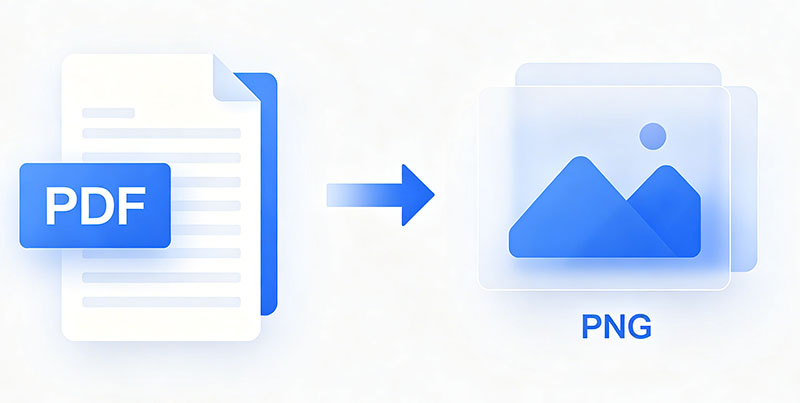
Blog Summary: Manual PDF‑to‑PNG methods are slow, error‑prone, and not suitable for bulk jobs. This guide introduces EayTools PDF to PNG Converter—a 100% offline desktop tool that converts single or multiple PDFs to high‑quality PNG images quickly, safely, and without third‑party software.
What Are PDF and PNG Formats?
PDF (Portable Document Format)
A fixed‑layout file developed by Adobe that preserves text, fonts, images, and layout across all devices and platforms. Ideal for sharing and printing but not always ideal for quick image previews.
PNG (Portable Network Graphics)
A lossless raster image format supporting high color depth and transparency. Perfect for web graphics, screenshots, and clean image previews. PNG files retain quality after repeated saves and work seamlessly on websites, social media, and mobile.
Why Convert PDF to PNG?
- Lossless quality: No quality loss during compression or re‑saving.
- Transparency support: 256 levels of opacity for flexible design use.
- High color range: PNG‑8 (256 colors) and PNG‑24 (16.7 million colors).
- Easy sharing: Smaller, web‑friendly, and viewable without a PDF reader.
- Layer compatibility: Works well in graphic design workflows.
- Offline usability: Viewable on any device without special software.
Prerequisites
- PDF files saved locally on your Windows computer.
- A trusted offline converter tool for privacy and speed.
- Enough storage space for output PNG files.
- Basic file management skills (upload, save, organize).
Manual Method: Convert PDF to PNG on Windows
Best for single pages only—not bulk.
- Open the PDF in a browser or viewer.
- Zoom in for clarity.
- Open the Snipping Tool and capture the page.
- Paste into Microsoft Word.
- Right‑click the image → Save as Picture.
- Select PNG as the format and save.
Limitations of Manual Conversion
- Extremely slow for multiple pages or files.
- High risk of blurry, low‑quality output.
- Repetitive steps increase human error.
- No batch support.
- Requires multiple apps (browser, snipping tool, Word).
- Not ideal for professional or business use.
Professional Offline Solution: EayTools PDF to PNG Converter
For fast, accurate, bulk PDF‑to‑PNG conversion, use EayTools—the secure, offline desktop utility designed for both beginners and experts.
Key Advantages
- Full offline operation: Internet only for download and license activation.
- Batch processing: Convert hundreds of PDFs in one click.
- Standalone: No Adobe Acrobat or extra software needed.
- Perfect fidelity: Preserves text, images, fonts, and layout.
- Dual loading: Add individual files or entire folders.
- Selective conversion: Check/uncheck files to convert only what you need.
- Custom output: Choose where to save PNG files.
- Wide Windows support: Windows 11, 10, 8, 7, Server editions.
- Multi‑format export: GIF, JPG, TIFF, HTML, TXT, DOCX, and more.
- Free trial: Convert up to 5 files for free.
Step-by-Step Offline Conversion
- Download and install EayTools PDF to PNG Converter.
- Launch the tool; use Select Files or Select Folder to add PDFs.
- Check or uncheck items to refine your conversion list.
- Choose PNG from the output format menu.
- Select a destination folder.
- Click Convert—the tool runs fully offline to finish.
After Conversion: Best Practices
- Confirm all pages converted correctly.
- Check clarity, sharpness, and color accuracy.
- Verify PNGs open properly on all devices.
- Organize files in a dedicated folder.
- Keep a backup of original PDFs.
Manual vs. Offline Professional Tool
表格
| Factor | Manual Method | EayTools Offline Converter |
|---|---|---|
| Software Needed | Browser, Snipping Tool, Word | Standalone—no extra apps |
| Batch Support | No | Yes, bulk conversion |
| Conversion Speed | Very slow | Fast, automated |
| Output Quality | Low/blurry | High‑definition, lossless |
| Error Risk | High | Very low |
| Offline Use | No | Yes, full offline operation |
| User Skill | Technical | Beginner‑friendly |
FAQs
Q1: How to convert PDF to PNG offline in high quality?
Use EayTools PDF to PNG Converter for lossless, offline, high‑resolution PNG output.
Q2: Can I convert multiple PDFs at once without internet?
Yes—EayTools supports batch conversion and runs completely offline.
Q3: Do I need Adobe Acrobat?
No—EayTools works independently.
Q4: Is there a free trial?
Yes—you can convert up to 5 PDF files for free.
Q5: Why is offline conversion better?
Offline tools keep your files local, protect privacy, avoid upload limits, and work without internet.
Conclusion
Manual PDF‑to‑PNG methods waste time and deliver poor results. EayTools PDF to PNG Converter provides a stable, offline, professional solution for personal, business, and enterprise users. Enjoy fast, accurate, bulk conversion with full layout preservation and zero third‑party dependencies.