
Blog Summary: Converting PDF to MHT creates web‑friendly, offline‑viewable document archives. This guide covers two reliable methods: a manual way using Microsoft Word for small jobs, and a 100% offline bulk solution with EayTools PDF to MHT Converter that preserves formatting and works without an internet connection after installation.
Introduction
Looking for a stable way to convert PDF to MHT? You’re in the right place. PDF and MHT serve different uses, so understanding them helps you choose the best method.
- PDF: Created by Adobe, a fixed‑layout format holding text, fonts, images, and graphics. Universal for sharing, printing, and archiving.
- MHT (MHTML): A web archive format that packages HTML, images, and resources into one single file. Ideal for offline web viewing and simple sharing.
Why Convert PDF to MHT?
- Web-friendly: HTML structure lets you open documents directly in browsers.
- All-in-one file: Combines text and media like PDF, but optimized for the web.
- Offline access: View web‑style documents without internet.
- Easy editing: Modify content with standard web tools.
Prerequisites
- Make sure PDFs are not corrupted and open properly.
- Place all PDFs in one easy‑to‑find folder.
- Have enough storage for output files.
- Use trusted conversion software.
- For desktop tools: internet only for download and license activation—conversion itself works offline.
- Keep software updated for stable performance.
Manual Method: Convert PDF to MHT with Microsoft Word
Best for single or very few files.
- Locate your PDF, right‑click it.
- Select Open With → choose Microsoft Word.
- If Word shows a conversion message, click OK.
- Once the PDF is visible in Word, go to the File tab.
- Click Save As, choose your output folder.
- Under Save as type, select Single File Web Page (*.mht; *.mhtml).
- Click Save. Repeat for other files.
Recommended Offline Solution: EayTools PDF to MHT Converter (Bulk)
Save time and effort with batch PDF to MHT conversion that runs fully offline. EayTools preserves layout, text, images, hyperlinks, and media—no internet needed during conversion after setup.
Key advantages:
- Complete offline operation: Convert anytime, anywhere, no web required.
- Bulk processing: Handle hundreds of PDFs in one task.
- Standalone: No Adobe Acrobat or third‑party apps needed.
- Wide Windows compatibility: Windows 11, 10, 8, 7, Server.
- User‑friendly: Simple interface for beginners.
- Flexible output: Choose where to save converted files.
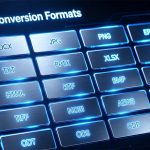
- Multi‑format support: Convert to HTML, TXT, RTF, EML, MSG, JPG, PNG, and more.
Step-by-Step Offline Conversion
- Download and install EayTools PDF to MHT Converter on your Windows PC.
- Launch the tool; use Select File or Select Folder to load PDFs.
- Check/uncheck files to pick only what you need.
- Under Select Saving Type, choose MHT.
- Click Browse to set a destination folder.
- Press Convert—the tool runs fully offline to finish the job.
Key Features of EayTools PDF to MHT Converter
- True offline conversion: Internet only for download and activation.
- Batch processing: Convert many PDFs at once.
- Standalone: No Adobe Acrobat required.
- Full formatting preservation: Layout, fonts, images, hyperlinks stay intact.
- Dual loading: Select individual files or entire folders.
- Wide format export: MHT, HTML, TXT, DOCX, JPG, PNG, etc.
- Compatible with all modern Windows versions.
- Clean, intuitive UI for non‑technical users.
After Conversion: Best Practices
- Check MHT files to confirm text, images, and formatting are correct.
- Verify tables, images, and layout match the original PDF.
- Organize converted files in a dedicated folder.
- Keep a backup of original PDFs for future edits.
FAQs
Q1: How do I convert PDF to MHT?
Use Microsoft Word to open the PDF and save as Single File Web Page (*.mht). For bulk files, use EayTools PDF to MHT Converter for fast, offline batch processing.
Q2: How to create an MHT file?
Save a web page or document as Single File Web Page in Word or supported browsers.
Q3: What is an MHT file?
MHT (MHTML) is a web archive that stores HTML, images, CSS, and text in one file for offline use.
Q4: Can Chrome open MHT files?
Yes—drag the MHT into Chrome or use Open file; support varies slightly by version.
Q5: How to convert PDF to MHT in batch offline?
Use EayTools PDF to MHT Converter: it supports bulk mode and runs completely offline after installation.
Conclusion
We’ve shown you two straightforward ways to convert PDF to MHT. Microsoft Word works for small tasks, but EayTools PDF to MHT Converter is the smarter choice for bulk jobs, thanks to full offline functionality, high fidelity, and time‑saving batch processing. It’s perfect for personal, business, and professional use.
Would you like me to turn this article into a concise 5-step quick-start guide for offline conversion?