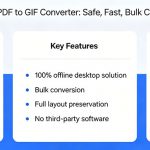

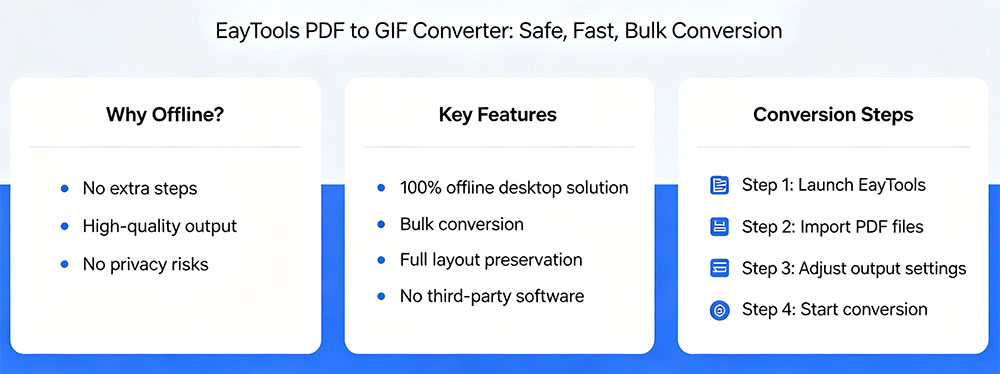
Blog Summary: Manual and online PDF‑to‑GIF methods involve extra steps, poor quality, and privacy risks. This guide introduces EayTools PDF to GIF Converter—a 100% offline desktop solution that converts PDFs to GIF safely, quickly, and in bulk, with full layout preservation and no third‑party software required.
Why Convert PDF to GIF?
GIF (Graphics Interchange Format) is widely used for quick sharing, short animations, and visual previews. Converting PDF to GIF helps you:
- Share content easily on websites, chats, and social media.
- Turn PDF pages into static images or looping animations.
- Create lightweight slideshows or visual previews.
- Upload and load faster online without a PDF reader.
- View content smoothly on browsers and mobile devices.
- Use for business ads, tutorials, and promotions.
Prerequisites
- Your source PDF files saved locally.
- A trusted offline converter tool.
- Enough storage for output GIF files.
- High‑quality source PDFs for clear GIF results.
- A Windows PC that can run desktop conversion software.
Manual Methods to Convert PDF to GIF
1. Screenshot + Image Editor
- Open your PDF and capture screenshots using PrtSc.
- Paste into MS Paint and save as an image.
- Use a separate converter to export as GIF.
Limitations: Slow, low quality, multiple tools needed.
2. Online Converter Websites
- Search for a PDF‑to‑GIF online tool.
- Upload your PDF.
- Convert and download the GIF.
Critical Risks:
- Files uploaded to external servers → privacy leaks.
- Slow for large or multiple PDFs.
- Unreliable quality and formatting.
- Not suitable for confidential data.
Professional Offline Solution: EayTools PDF to GIF Converter
For secure, high‑quality, bulk conversion, choose EayTools PDF to GIF Converter—the reliable offline tool that keeps your data private and your workflow efficient.
Key Benefits
- True offline conversion: Internet only for download and license activation.
- Full privacy: All files processed locally on your PC.
- Standalone: No Adobe Acrobat or extra software needed.
- Bulk processing: Convert hundreds of PDFs at once.
- High fidelity: Preserves text, images, fonts, and layout.
- User‑friendly: Simple interface for beginners.
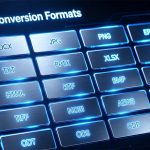
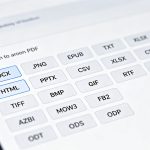
- Wide format support: GIF, JPG, PNG, TIFF, HTML, TXT, DOCX, and more.
- 24/7 support: Help available anytime.
Step-by-Step Offline Conversion
- Download and install EayTools PDF to GIF Converter.
- Launch the tool; use Select Files or Select Folder to load PDFs.
- Check or uncheck files to choose exactly what to convert.
- Choose GIF as the output format.
- Pick a destination folder.
- Click Convert—the tool runs fully offline to complete the job.
After Conversion: Best Practices
- Check that all pages converted correctly.
- Verify text and images are clear and sharp.
- Open GIFs to confirm playback or display works.
- For animated GIFs, check smooth looping.
- Keep a backup of original PDFs.
FAQs
Q1: How do I convert PDF to GIF safely?
Use EayTools PDF to GIF Converter for offline, private, high‑quality conversion. Avoid online tools for sensitive files.
Q2: Can I convert multiple PDFs at once offline?
Yes—EayTools supports batch conversion and runs completely offline.
Q3: Are online PDF‑to‑GIF converters safe?
They upload files to cloud servers, risking data exposure. Use an offline desktop tool for privacy.
Q4: What formats does EayTools support?
It converts PDF to GIF, JPG, PNG, TIFF, HTML, TXT, RTF, EML, DOCX, and many others.
Q5: Do I need Adobe Acrobat?
No—EayTools works independently without third‑party software.
Conclusion
Manual and online PDF‑to‑GIF methods are slow, low‑quality, and risky for privacy. EayTools PDF to GIF Converter provides a stable, offline, professional solution for individuals, businesses, and professionals. Try the free trial today (convert up to 5 files) and experience secure, bulk PDF‑to‑GIF conversion on your Windows PC.